It has been 4 years since I published my post. This is one of the posts that was left as draft in 2012.
Working on remote machines machine can be a pain. Putty can be life saver for windows folks. There are so many useful settings that are hardly touched upon in our daily use. One of them is connection settings.
If you have seen this error 'Network error software caused connection abort putty' every time you went for lunch or tea, then it is time to get rid of it.

1. Start Putty.
2. “Load” your session.
3. Click on “Connection”.
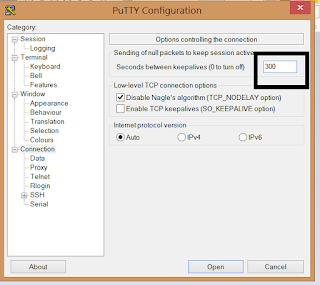
4. On the section that says “Sending of null packets to keep session active”, put some value there. I changed mine to 300 secs.
Explanation:
Working on remote machines machine can be a pain. Putty can be life saver for windows folks. There are so many useful settings that are hardly touched upon in our daily use. One of them is connection settings.
If you have seen this error 'Network error software caused connection abort putty' every time you went for lunch or tea, then it is time to get rid of it.
It turns out the setting is on the putty not the server side.
1. Start Putty.
2. “Load” your session.
3. Click on “Connection”.
4. On the section that says “Sending of null packets to keep session active”, put some value there. I changed mine to 300 secs.

Explanation:
"Some network routers and firewalls need to keep track of all connections through them. Usually, these firewalls will assume a connection is dead if no data is transferred in either direction after a certain time interval. This can cause PuTTY sessions to be unexpectedly closed by the firewall if no traffic is seen in the session for some time.
The keepalive option (‘Seconds between keepalives’) allows you to configure PuTTY to send data through the session at regular intervals, in a way that does not disrupt the actual terminal session. If you find your firewall is cutting idle connections off, you can try entering a non-zero value in this field. The value is measured in seconds; so, for example, if your firewall cuts connections off after ten minutes then you might want to enter 300 seconds (5 minutes) in the box."
1. http://superuser.com/questions/294824/putty-network-error-software-caused-connection-abort
The keepalive option (‘Seconds between keepalives’) allows you to configure PuTTY to send data through the session at regular intervals, in a way that does not disrupt the actual terminal session. If you find your firewall is cutting idle connections off, you can try entering a non-zero value in this field. The value is measured in seconds; so, for example, if your firewall cuts connections off after ten minutes then you might want to enter 300 seconds (5 minutes) in the box."
Sources:
1. http://superuser.com/questions/294824/putty-network-error-software-caused-connection-abort